
What is Google My Business Location Authority? How Local Content Can Help.
Blue Swing Media • May 7, 2020
How to boost Location Authority using Local Content Marketing

Location authority
plays a huge role in advancing the interests of businesses that are looking to gain more customers and local content can help. The reason behind this is that location authority endows a company with the ability and power to rank better on Google Map searches, thus increasing the chances of it being discovered by new customers. As a business’s location authority grows, it will start ranking higher on Google Map search results. To put it simply, your business listing will pop up without the need for a customer to zoom in on a particular location, thus enhancing your credibility and visibility among potential customers. With increasing location authority, a company will be able to dominate search results over a much larger area in Google Maps.
For instance, if a customer types ‘Restaurants in FL’, restaurants with greater location authority will be ranked higher and be displayed first to the user. And if your business has a content rich website, search engines with eventually take notice. Additionally, the restaurant will also rank first on the map’s listed results, thus increasing the likelihood of the user clicking on their listing.
Local businesses
can generate a huge amount of leads and sales by ranking better on Google Map results. Bagging one of the top spots is absolutely crucial since the latest statistics show that more than 90% of all traffic is hogged by the top 3 local business listings. To gain more customers, it is imperative that you improve the location authority of your business.
Verification of your listing
on Google My Business is necessary for ensuring your business is visible on Google Map results.
However, mere verification doesn’t mean that your listing is going to top the search rankings automatically.

How to Achieve Better Google Map Rankings?
The secret lies in increasing your business’s location authority and having a local content marketing strategy will take care of a large portion of what is needed. Apart from giving your business the ability to rank better on Map results, your business listing will also likely be shown to users who are relatively at a greater distance from your location.
Not having any location authority means that your Google Maps listing will only pop up when users are near your place of business. However, by increasing your location authority, your business will be visible to users even at greater distances.
For instance, possessing enough location authority could help your business be seen by people who are 3 miles, 6 miles, or even 12 miles away from your business location.
At Blue Swing Media, we frequently talk to our clients about an important phrase that can take the performance of their Google Maps listing to a whole new level – Location Authority.
This is what drives the rankings of a location or local business
in Google Map search results. If you want to drive more customers to your business in this digital age, you need to make location authority your new best friend.
Once your business starts ratcheting up its location authority, it will start making its way up the local Google Map search results, shining a spotlight on your business in the process.
While describing local SEO
practices to our clients, we usually talk to them about location authority as well. However, many prospective and existing clients are completely unaware of the role played by location authority.
Location Authority – How Useful Is It?
Location Authority is a measure of a business’s credibility, consistency, and accuracy.
For achieving any significant location authority & for competing in Google Map/local search results effectively, it is location authority that plays the biggest role compared to other factors in determining your ranking within the defined radius and market.
Location authority can be boosted by ensuring that the information posted online about your business is accurate and consistent to the best of your abilities.
The information we’re talking about here are your official business citations. Business citations contain the following information regarding your business:
- Name of your business (as per GMB listing)
- Street Address
- City Name, State, and Zip Code
- Your Business Phone Number
- Website URL
All of your online business citations should follow the same format given in your listing on Google My Business.
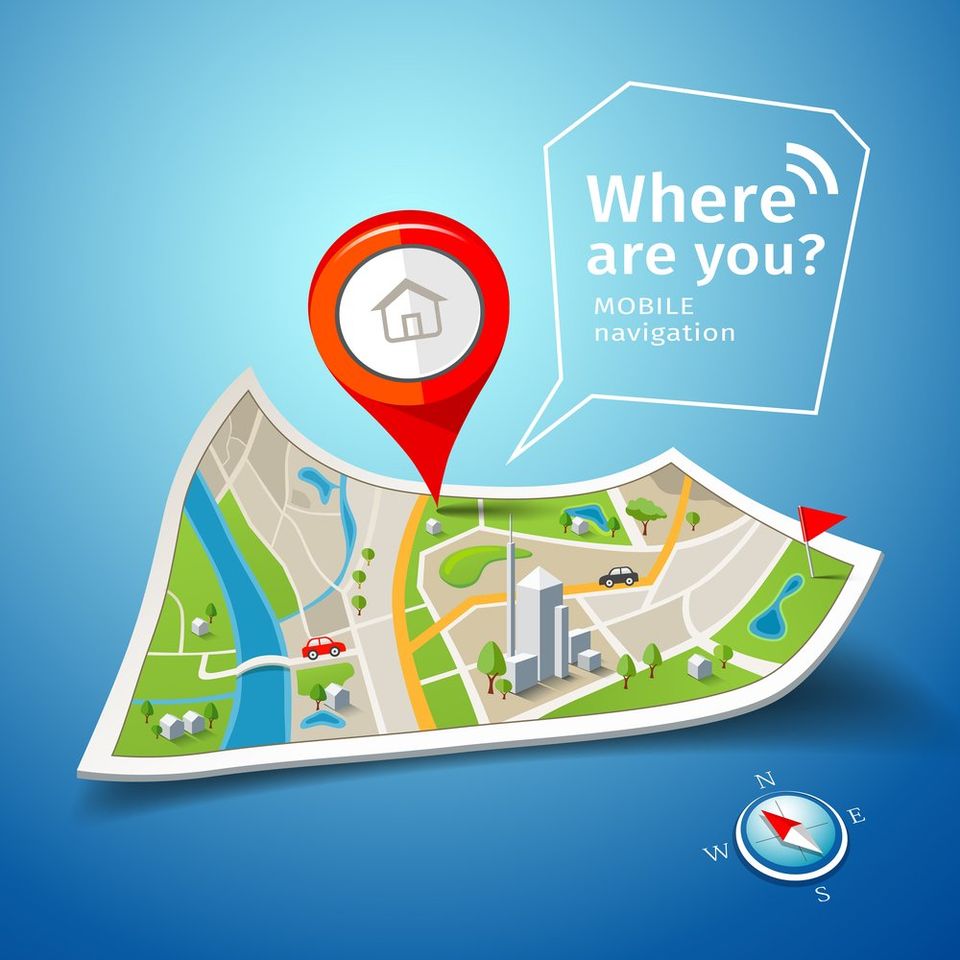
What are Google Maps Citations?
Let’s take Blue Swing Media as an example. Here is our standard citation format, which we use for distributing on webpages around the Internet via our partner network:
- Blue Swing Media – Website Design, Content Marketing & SEO in Southwest Florida
- 157 S. Davis Street
- LaBelle, FL 33935
- 863-517-0615
- https://blueswingmedia.com
Even you can harness the magnitude and scale of our citation distribution network that we use for enhancing Blue Swing Media’s rankings, when you engage our services.
You can also check out White Spark’s graph, which has been presented here to help you better understand the citation ecosystem in greater detail.
Are Google Map Citations Enough for Building Location Authority?
Distributing business citations across many websites is actually quite similar to backlink building strategies
that are commonly used for increasing a website’s organic search traffic from search engines.
However, mere publication and distribution of your business citations isn’t enough for building your business’s location authority.
The citations must be published on websites that deal with your location and industry.
To sum this article up, this is what you need to do to improve your location authority:
- Register your business on Google Maps
- Claim your business listing
- Provide comprehensive details about your business on your Google profile
- Use local contact numbers
- Avoid using tracked phone numbers
- Update the working hours of your business
- Optimize your business description on Google Maps
- Ensure that the business has been categorized properly
- Add photos of your office to the listing
- Try to increase the number of Google reviews you have
- Consolidate all duplicate listings for your business
- Maintain a well-designed, responsive site
- Embed Google Maps on your site
- Utilize local keywords
Building location authority can be extremely useful in increasing your search result rankings on Google Maps. By optimizing
it properly, not only will your leads, sales, and revenues rocket monumentally, but your business will also be able to make a name for itself as a reliable and credible service provider. In this day and age, where the reputation of your business online can make or break your business, this is one aspect that you cannot afford to ignore.
Share
Will AI replace real estate agents? How do you show up in ChatGPT answers? The top 10 questions Realtors are asking about AI marketing — answered honestly, with a practical plan.
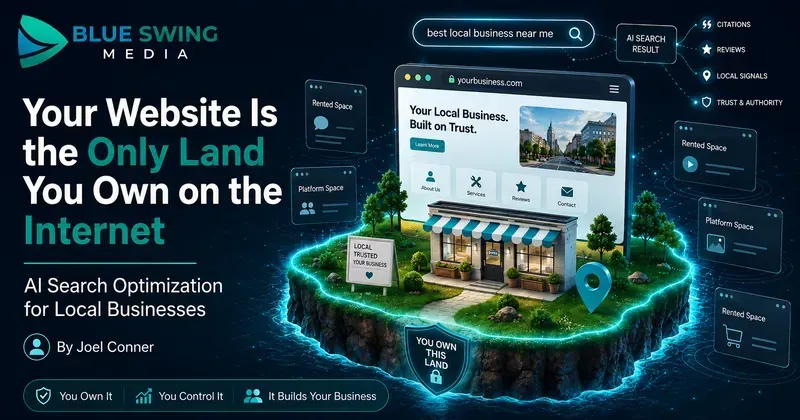
Your Website Is the Only Land You Own on the Internet. Here's How to Make It Work in the AI Search Era. There's a homeowner in Cape Coral right now standing in front of her air handler, phone in hand, asking an AI assistant a question she used to type into Google: "The thermostat is on, the fan is blowing, but there's no cold air. What's wrong, and who should I call?" Ten years ago, that question would have been mangled into "AC not cooling near me," she'd have clicked three websites, skimmed two of them, and called whoever answered first. Today, the AI just... answers. It explains the likely causes. It might name a company. And she may never click through to a website at all. Some marketers look at that and declare the website dead. They're wrong — and if you follow their advice, you'll end up building your entire business on land somebody else owns. Here's the truth worth building a strategy on: your website is the only piece of the internet you actually own. Google can change its algorithm tomorrow. ChatGPT can change how it cites sources next month. Facebook can throttle your reach on a Tuesday for reasons nobody will ever explain to you. But your domain? That's yours. Nobody can take it, rank it out of existence, or charge you rent to reach your own audience there. So no — don't abandon the website . Do the opposite. Make it the hub : the home base where your real knowledge lives, built so that both humans and AI systems can read it, trust it, and cite it. Then push that content outward to every rented platform — Google, the AI assistants, social media, email — like spokes on a wheel. The website's job description is changing. Its importance isn't. What actually changed: search stopped being keywords and became conversations For a decade, local marketing was a vending machine. Put money in the top (SEO, ads, landing pages), and leads came out the bottom. Search, click, convert. The journey was so predictable we built an industry around it — prettier websites, faster load times, a chat widget in the corner blinking like it needed medical attention. That machine still works. But a growing share of searches now end with zero clicks — the AI answers, the customer nods, done. And people don't search like robots anymore, because they're no longer talking to one. Nobody says "roofer near me" to an AI. They say: "A storm knocked shingles off one section of my roof. Do I need a whole new roof or can this be patched, and roughly what would each cost?" That's not a keyword. That's a conversation with a diagnosis, a decision, and a budget question inside it. And here's the part that matters for your strategy: when the AI answers that question, it has to get the answer from somewhere. It pulls from sources it can read, verify, and trust. Your hub — your website — is where you become that source. The hub-and-spoke model: own the content, rent the reach Think of it this way: The hub is your domain. It holds your services, your pricing guidance, your answers to real customer questions, your credentials, your booking system. It's structured, specific, and permanent. You own it outright. The spokes are everywhere that content travels: Google's AI results, ChatGPT and Gemini citations, Facebook posts, YouTube videos, email newsletters, Google Business Profile. These platforms are powerful — and they're all rented. Their rules change without your vote. The businesses that get burned in every platform shift are the ones that built their house on the spokes. The ones that thrive publish deep, original content on their own domain first, then syndicate it outward. When the algorithm changes — and it always changes — the hub is still standing. The AI era doesn't break this model. It rewards it, because AI systems need trustworthy sources to cite, and a well-organized website full of genuine expertise is exactly what they're looking for. Which raises the real question: what should the hub actually contain? Nobody has ever finished reading "5 Tips for Spring Home Maintenance" You know the posts. Every home services website has them. "Why You Should Clean Your Gutters." "Top Reasons to Service Your AC Before Summer." Content so interchangeable you could swap the logo at the top and nobody — including the business owner — would notice. That content was always weak. In the AI era, it's worse than weak: it's invisible. AI can generate a generic maintenance-tips article in four seconds, so it has no reason to cite yours. Generic content is a commodity with negative value — it costs money to produce and tells the machines nothing about why you're worth recommending. What AI systems reward is the thing your business has in abundance and no content mill can fake: real jobs, real customers, real questions. Compare: "Why You Should Maintain Your AC" (written by everyone, read by no one) "Why One Room in Your House Stays Hot Even When the AC Is Running" (written by someone who has actually crawled through an attic in July) The second one wins because it matches how a real person describes a real problem — and it's exactly what an AI reaches for when a customer describes that situation. Three things to build into your hub right now 1. Publish pricing — yes, actually The single most common thing people ask AI about a service is "how much does this cost?" If your website contains no pricing information, you've handed the AI nothing to work with — and it will happily cite the competitor who did. The usual objection: "Every job is different, we can't publish prices." True — and irrelevant. Nobody's asking you to post your internal price book. Publish guidance: typical ranges, what drives cost up or down, what's included, and where the "$99 special" in the mailer turns into a $600 invoice once someone's actually on the ladder. A gutter company, for instance, could explain why a single-story ranch costs less than a steep two-story with a pine tree hanging over it, whether downspout flushing is included, and when cleaning stops making sense and repair starts. That one page builds trust with humans, pre-qualifies your leads, and gives AI something concrete to cite. Three wins, one article — published on your domain, where it keeps working for years. 2. Make your hub bookable — by humans and machines The next phase of this shift is agentic booking : a customer tells their AI assistant, "Find a plumber who can come Friday afternoon and book it," and the assistant does exactly that. When that becomes routine — and in some industries it already is — the businesses that get chosen won't necessarily be the best plumbers. They'll be the ones a machine can actually transact with. If booking your company requires calling during business hours and describing the problem to whoever picks up, you're invisible to an AI shopping on someone's behalf. The honest audit takes ten minutes: Can someone book you online, right now, at 9 PM, from a phone, without talking to anyone? Are your service areas and appointment types defined somewhere a system can read them? If you're on Jobber, ServiceTitan, or Housecall Pro, do you know what they're building for AI-assisted booking? If the answer to any of these is "uh," that's your to-do list. And notice where the booking lives: on your site. Your domain becomes not just where customers learn about you, but where the transaction happens — no middleman taking a cut of the lead. 3. Mine the gold your phone rings with every day Here's the content strategy hiding in plain sight: your office staff and technicians hear the best content ideas in your market, every single day, for free. Every question a customer asks — on a call, at an estimate, in a review, in a text — is a question hundreds of other homeowners are asking an AI right now. "Why does my breaker trip when I run the microwave?" "Is this furnace noise normal?" "Do I need to be home for the appointment?" "Can I patch this or does it all have to go?" Start writing them down. A shared note, a whiteboard, a Friday email from the techs — the system doesn't matter. Then turn each one into a plain-language answer on your website first : a blog post, an FAQ entry, a service page update. Then cut it up and send it down the spokes — a short video for social, a snippet for email, a post for your Google Business Profile — all pointing back home. You're not inventing content. You're transcribing expertise you already have, and planting it on land you own. The deeper asset: your knowledge, organized Zoom out and you can see where this heads. AI search is step one. Step two is personal AI agents — assistants that don't just answer questions but research options, compare providers, request quotes, and book appointments on a customer's behalf. When machines start shopping for humans, the winning businesses will be the ones whose knowledge is organized: services, service areas, pricing logic, policies, credentials, warranty terms, common repair scenarios, and the accumulated judgment of your team — structured clearly enough for both people and machines to understand. Right now that knowledge is scattered across your CRM, a few PDFs, and the heads of your three most experienced employees. Think of the goal as a knowledge catalog — and think of your website as its public face. The hub isn't just a brochure anymore. It's the published, citable edition of everything your business knows. The old game was ranking. The new game is being understood — and understood at an address you control. Where to start this month No overhaul required. Pick from this list in order: Write one pricing guide for your highest-volume service. Ranges, cost factors, what's included. Clarity beats precision. Test your own booking process on your phone, after hours, as if you were a customer. Fix what's broken. Start a question log. Every real customer question your team hears goes on the list. Publish answers to the top ten questions on your website, in the words customers actually use — then repurpose them for social, email, and video. Audit your service pages. If a page could belong to any company in any city, it's not done yet. Organize your business knowledge in one place, and let your website reflect it. Then ask the new optimization questions. Not just "do we rank?" but: Does AI understand what we do? Can it find our pricing? Can it answer common questions using our content? Could a machine book us — through our site? The bottom line The platforms will keep changing. Google will redesign search again. The AI assistants will rewrite their citation rules. Social reach will rise and fall like the tide. That's what rented land does. Your domain doesn't. It's the one asset in your digital presence with a deed attached — so treat it like the hub it is. Fill it with real answers, real pricing guidance, real expertise from real jobs. Make it easy to read, easy to trust, easy to cite, and easy to book. Then share that content everywhere your customers and their AI assistants spend time, with every spoke pointing back home. The businesses that win the next five years won't be the ones chasing every new platform. They'll be the ones that built something worth citing — on land they own. If you want help making your website the AI-ready hub of your marketing — content, pricing pages, local SEO, and a strategy for sharing it everywhere else — Blue Swing Media works with small businesses to build practical systems for what's next, not what worked in 2019.
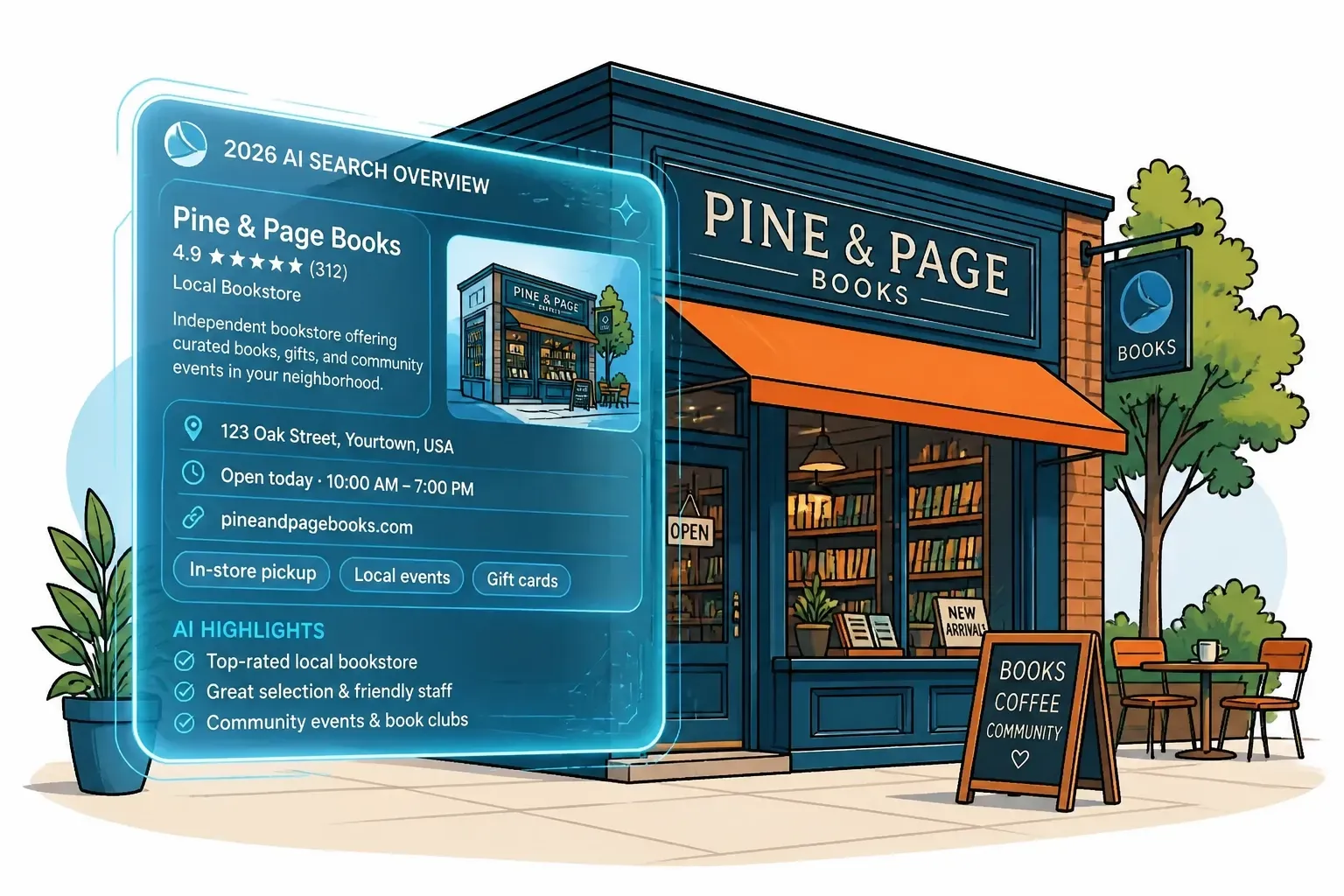
The 10 blue links are gone. In 2026, local SEO means getting cited by AI Overviews. Learn how GEO, Google Business Profile, and E-E-A-T keep your business visible.